HDMI 2.1 vs DisplayPort 2.1: Which Cable Do You Need?
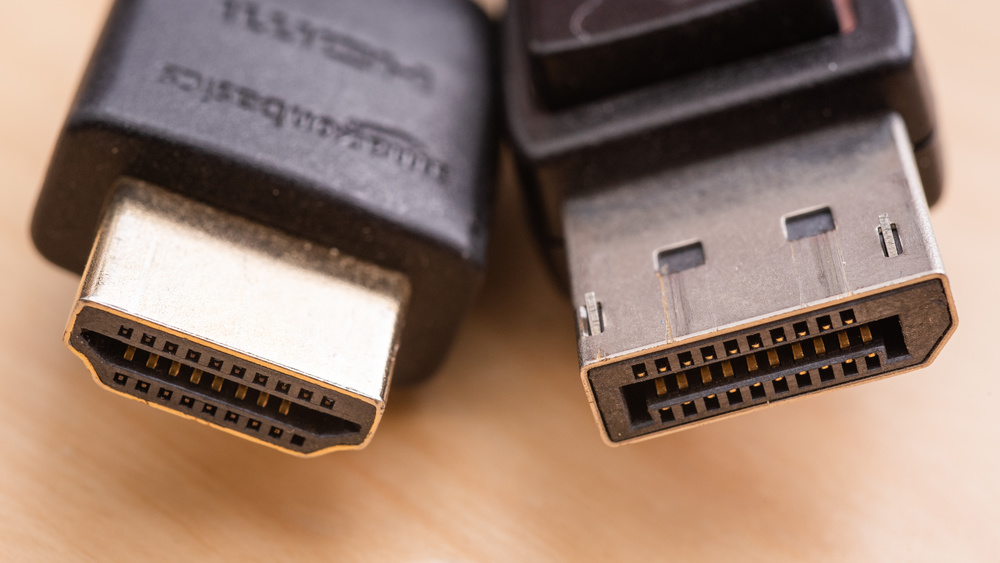
You just bought a shiny new 4K 144Hz monitor or an 8K TV, but when you plug it in, you're capped at 60Hz. Why? The culprit is likely your cable. In 2026, the battle between HDMI and DisplayPort is fiercer than ever.
HDMI 2.1: The TV Standard
HDMI (High-Definition Multimedia Interface) is ubiquitous. If you have a TV, a soundbar, or a console (PS5/Xbox Series X), you are using HDMI.
- Max Bandwidth: 48 Gbps.
- Capabilities: 4K at 120Hz, 8K at 60Hz, Dynamic HDR, eARC (audio return channel).
- Best For: Living room setups, connecting consoles to TVs, and general home theater use.
DisplayPort 2.1: The PC Master Race
DisplayPort (DP) was designed specifically for computers. While less common on TVs, it is standard on almost all graphics cards and monitors.
- Max Bandwidth: Up to 80 Gbps (UHBR 20).
- Capabilities: 4K at 240Hz, 8K at 85Hz (without compression), Multi-Stream Transport (daisy-chaining monitors).
- Best For: High-end PC gaming, multi-monitor setups, and professional workstations.
The Key Differences
1. Bandwidth: DisplayPort 2.1 is significantly faster than HDMI 2.1, allowing for higher refresh rates at extreme resolutions.
2. Audio: HDMI supports ARC/eARC for sending audio back to a receiver/soundbar. DisplayPort does not.
3. Connectors: HDMI has no locking mechanism (easy to pull out). DisplayPort often has a latch (secure connection).
Real‑World Scenarios
In practice, the “right” cable depends less on specs and more on where the screen lives. A living‑room console hooked up to a big TV should almost always stick to HDMI 2.1—you gain eARC for audio, ALLM for low‑latency gaming modes, and maximum compatibility. At a desk with a high‑refresh monitor and gaming PC, DisplayPort is usually the better experience, especially if you use adaptive sync or need to daisy‑chain multiple displays.
Which Should You Use?
- For PC Gaming: Always use DisplayPort. It ensures G-Sync/FreeSync works correctly and unlocks the full refresh rate of your monitor.
- For Console Gaming / TV: Use HDMI 2.1. Consoles do not have DisplayPort outputs, and TVs rarely have DP inputs.
- For Laptops: USB-C (Thunderbolt 4) often carries a DisplayPort signal. Use a USB-C to DisplayPort cable for the best experience.
If you are still unsure after checking the ports on your devices, start with the simplest question: where will you actually sit and what will you do most? Competitive PC players who care about frame pacing and variable refresh rate almost always get more out of DisplayPort, especially on high‑refresh QHD and 4K monitors. Console‑first households and mixed‑use living rooms benefit more from the convenience features bundled into HDMI 2.1—CEC control, eARC for soundbars, and wide TV compatibility. When in doubt, read your TV or monitor’s manual; manufacturers often publish recommended ports and settings for both scenarios, which can prevent a lot of trial‑and‑error.